
Use Codex to make your first useful change.
Start with a small project, describe one observable improvement, and review the result before shipping.
You do not need to begin with an entire application. This worked example asks Codex to improve one empty state in a project you already have. The deliverable is a reviewable change and evidence that the screen still works.
Before you begin
You need a project folder, a backup or Git checkpoint, and access to Codex. The current OpenAI quickstart puts Codex in the desktop app’s product selector; terminal users can use the separate CLI. Available features and usage depend on your account and setup. A ChatGPT subscription is not a general-purpose API credit balance. Check current usage and availability before a long task.
1. Open the right project
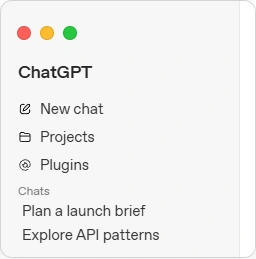
Sign in, select Codex, and choose the folder for your project. Start with a copy if you are experimenting. Tell Codex to read the project instructions and explain how to run the app before changing anything. Check that the folder it describes is the one you intended.
2. Give it a change you can observe
Pick a small failure you can reproduce. In our example, a search with no results leaves the customer staring at a blank page. Specify what should appear, what already works, and how to check the result.
In this project, improve the empty search state.
Show a short explanation and a Clear search button when no items match.
Use the existing styles. Preserve sorting and bookmarks.
Run the app and verify that clearing search restores the list.
Show the files changed and the checks you ran. Do not deploy.
This is an original teaching example, not a claim that your project has this bug. Replace the behavior and constraints with something you can test in your own app.
3. Read the change and try the result
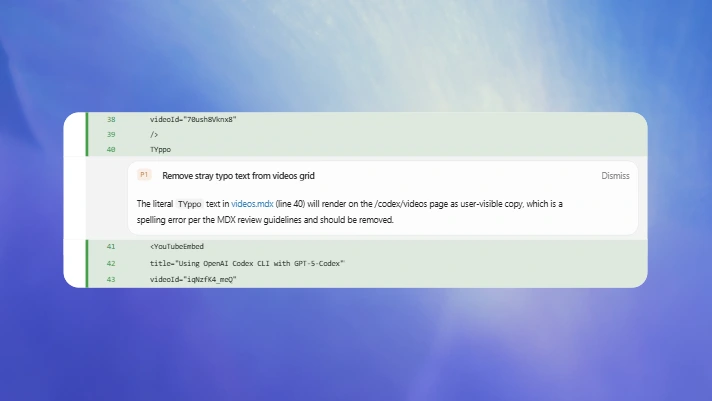
Open the changed files or review pane. Look for changes unrelated to your request. Then run the exact scenario: search for a nonsense term, read the empty state, activate Clear search, and confirm the rows return. Test the keyboard path as well as a click.
4. Decide whether it is finished
Success means you can reproduce the improvement and understand the check results. “Tests not run” is different from “tests passed.” Ask about any failed or unavailable check. Save a checkpoint once you accept the change, then pick the next small task.
If Codex is working in the wrong folder, stop and reopen the correct one. If a command fails, provide the exact error and the command that produced it. Keep secrets out of prompts and screenshots. If you cannot explain why a change is needed, ask for that explanation before shipping.
Sources & review
Official documentation checked 2026-09-16. Interfaces, access, and limits can change. Screenshots are labeled public documentation captures, not screenshots of your account.