
The terminal, without the guesswork.
Learn where you are, list the files, and move into a project with three PowerShell commands.
A terminal is the window; PowerShell is the program interpreting the commands inside it. This walkthrough uses Windows PowerShell. These first commands inspect your location and files or change your current folder. They do not delete files or install anything.
Before you begin
Open Terminal from the Windows Start menu and select a PowerShell tab. The prompt often begins with PS followed by a folder path. Text before the cursor is context, not part of the command you need to type. Press Enter to run one command at a time.
1. Find out where you are
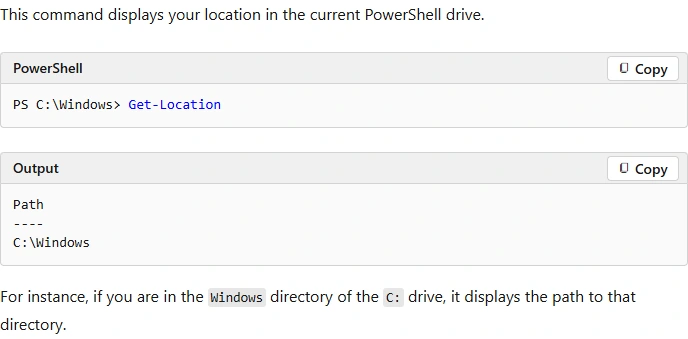
Get-LocationThe output includes a Path. This is the folder relative file names will use. It may be your home folder, a project, or somewhere else. Read it before starting a coding tool.
2. List the names in this folder
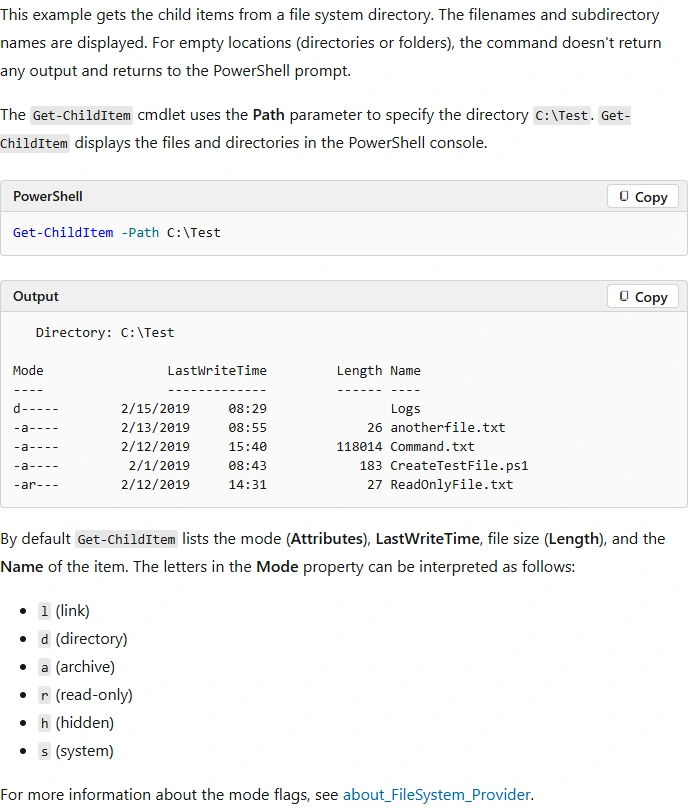
Get-ChildItem -NameYou will see file and folder names from the current location. An empty folder can return no names; that is not necessarily an error. Look for the project folder you expected. Listing files does not open or execute them.
3. Move into your project
Copy your project’s path from File Explorer. Replace the example below; do not assume this folder exists on your computer. Quotes keep paths with spaces together.
Set-Location -LiteralPath "C:\Projects\My App"
Get-Location
Get-ChildItem -Name
The second command confirms the new location. The third helps you recognize the project: for example, a README and source folder. Set-Location changes where the shell is working; it does not move the folder or its files.
Read the first useful error
If a path cannot be found, check spelling and quotes in File Explorer. If a command is not recognized, it may not be installed or available to this terminal. Copy the command and the relevant error when asking for help, leaving out tokens, keys, and private file contents.
Do not paste a command intended for Bash into PowerShell and assume the syntax is interchangeable. Use the installation instructions that name your shell. For a beginner exercise, avoid commands that remove files, overwrite folders, or change system settings.
A two-minute practice task
- Run Get-Location and read the path aloud.
- Run Get-ChildItem -Name and recognize one folder.
- Move into a project you own and confirm its path.
- Read its README to learn the next command. Do not guess a start or install command.
You have succeeded when you know which folder a tool will see before launching it. That habit makes Codex, Claude Code, and ordinary build tools much easier to use.
Sources & review
Official documentation checked 2026-09-16. Interfaces, access, and limits can change. Screenshots are labeled public documentation captures, not screenshots of your account.